



Creating a WhatsApp group makes it easy to share messages, photos, and updates.
In this guide, you’ll learn how to create a WhatsApp group on Android, iPhone, and PC, add members, customize group settings, and fix common issues.
How to Create a WhatsApp Group on Android?
Creating a WhatsApp group on Android is easy. Follow these simple steps to start chatting with friends, family, or colleagues.
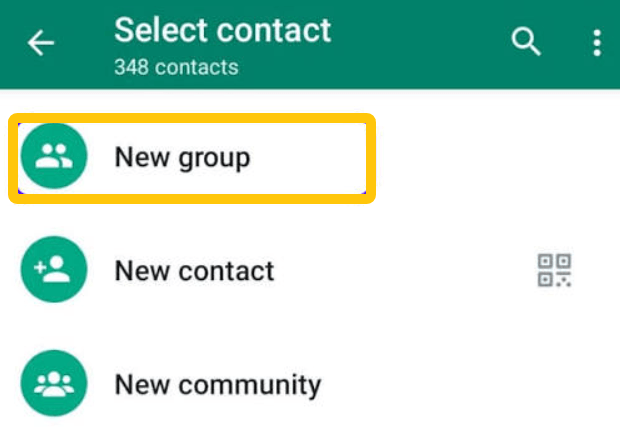
Step 1: Open WhatsApp on your Android phone and go to the Chats tab.
Step 2: Tap the three-dot icon in the top-right corner and select “New Group”. Choose the contacts you want to add, then tap the arrow icon to continue.
Step 3: Enter a name for your group in the Group Subject field. You can also tap the camera icon to add a group profile picture.
Step 4: Tap the green checkmark to create your WhatsApp group.
How to Create a WhatsApp Group on iPhone
If you’re using an iPhone, you can also create a WhatsApp group in just a few steps:
Step 1: Open WhatsApp on your iPhone and tap Chats at the bottom of the screen.
Step 2: Tap the new chat icon in the top-right corner and select “New Group”. Select the contacts you want to include, then tap “Next”.
Step 3: Enter your preferred group name in the Group Subject field. If you like, tap the camera icon to upload a group photo.
Step 4: Tap Create in the top-right corner to finish setting up your WhatsApp group.
How to Create a WhatsApp Group on PC or WhatsApp Web
You can also create a WhatsApp group from your computer using WhatsApp Web or the desktop app.
Step 1: Open WhatsApp Web in your browser or launch the WhatsApp desktop app. Log in by linking your phone if you haven’t already.
Step 2: Click the New Chat icon near the top of the chat list and select New Group.
Step 3: Choose the contacts you want to add to the group, then click the arrow or Next button to continue.
Step 4: Enter a name for your WhatsApp group. You can also click the group photo icon to upload an image as its profile picture.
Step 5: Click Create or the confirmation button to finish. Your new WhatsApp group is now ready!
Want to stay connected with friends and family on WhatsApp, even when you’re traveling or using a restricted network? Try LightXtreme VPN. With 2,000+ high-speed servers across 70+ countries and regions, it offers unlimited data and bandwidth to help you maintain a stable connection and access online services more easily.
Download it and enjoy a smoother online experience!
How to Add Members to a WhatsApp Group
After creating a WhatsApp group, you may want to invite more people to join the conversation. WhatsApp offers two simple ways to add members:
Method 1: Add Contacts Directly
If the person is already in your contacts, you can add them to your WhatsApp group by following these steps:
Step 1: Open WhatsApp and enter the group chat where you want to add new members.
Step 2: Tap or click the group name at the top of the chat to open Group Info.
Step 3: Select Add Members or Add Participants, then choose the contacts you want to invite.
Step 4: Tap Add or the confirmation button to finish. The selected contacts will be added to your WhatsApp group.
Method 2: Invite People Using a WhatsApp Group Link
If you want to invite people who aren’t in your contacts, sharing a WhatsApp group link is a convenient option. Here’s how:
Step 1: Open the WhatsApp group and tap its name to access Group Info.
Step 2: Scroll down and select Invite via Link.
Step 3: Choose how you want to share the invitation. You can copy the link, send it through WhatsApp, or share it using other apps.
Step 4: Send the link to the people you want to invite. They can tap it to view the group invitation and join the WhatsApp group if they meet the joining requirements.
How to Customize and Manage a WhatsApp Group?
After creating a WhatsApp group, you can customize its appearance and adjust its settings to make conversations easier to manage.
1. Change the WhatsApp Group Name
Step 1: Open WhatsApp and enter the group chat.
Step 2: Tap the group name at the top to access Group Info.
Step 3: Tap the Edit icon next to the group name to change it.
Step 4: Save your changes.
2. Make Someone a Group Admin
If you have a large WhatsApp group, assigning additional admins can help you manage members and group activities more efficiently.
Step 1: Open the group chat and tap the group name to view Group Info.
Step 2: Find the member you want to promote and tap their name.
Step 3: Select Make Group Admin from the available options.
3. Change WhatsApp Group Permissions
WhatsApp lets group admins control who can send messages, edit group information, and add new members.
Step 1: Open the group chat and go to Group Info.
Step 2: Select Group Permissions or Group Settings, depending on your WhatsApp version.
Step 3: Adjust the available options, such as:
- Send Messages: Choose whether all members or only admins can send messages.
- Edit Group Settings: Control who can change the group name, description, and profile picture.
- Add Other Members: Manage who can add new participants.
- Approve New Members: Require admin approval before new participants can join through an invitation link.
4. Remove or Leave a WhatsApp Group
You may sometimes need to remove an inactive member or leave a group you no longer want to participate in.
To remove a member:
- Open the group chat and tap the group name.
- Find the member you want to remove.
- Tap their name and select Remove from Group.
- Confirm your choice.
To leave a group:
- Open the WhatsApp group.
- Tap the group name to access Group Info.
- Scroll down and select Exit Group.
- Confirm to leave the conversation.
Common Problems When Make a WhatsApp Group
Here are some common WhatsApp group issues and practical ways to fix them.
Q1. Why Can’t I Create a WhatsApp Group?
If you can’t create a WhatsApp group, try these possible solutions:
- Update WhatsApp: An outdated app version may cause certain features to stop working.
- Check Your Internet Connection: Make sure your phone is connected to a stable Wi-Fi or mobile network.
- Restart WhatsApp: Close the app completely and reopen it to see if the problem is resolved.
- Clear App Cache: On Android, clearing WhatsApp’s cache may help fix temporary app issues.
Q2. Why Can’t I Add Someone to a WhatsApp Group?
- Privacy Settings: The person may have restricted who can add them to groups.
- Group Member Limit: The group may have reached its maximum participant capacity.
- Admin Restrictions: Only group admins may have permission to add new members.
- Account Issues: The contact may no longer be using WhatsApp or may have an inactive account.
How to fix it: Check your group permissions, ask an admin to add the person, or send them a WhatsApp group invite link.
Q3. Why Is My WhatsApp Group Invite Link Not Working?
If someone can’t join your group through an invitation link, check the following:
- An admin may have reset the invitation link, making the old one invalid.
- Make sure you copied and shared the complete URL.
- Some groups require admins to approve join requests before new members can enter.
- The group may have reached its participant limit.
How to fix it: Ask a group admin to generate a new invitation link and share it again. If the group requires approval, wait for an admin to accept the request.
Q4. Why Can’t I Send Messages in a WhatsApp Group?
If you can read group messages but can’t send your own, the group may have restricted messaging permissions.
How to fix it: Open Group Info and check the group permissions. If only admins are allowed to send messages, you’ll need to contact an admin and ask them to change the setting.
Q5. Why Can’t I Change WhatsApp Group Information?
If you can’t edit the group name, profile picture, or description, an admin may have limited these permissions.
How to fix it: Ask a group admin to update the relevant settings under Group Permissions. If you’re an admin, check whether the group allows all participants or only admins to edit group information.
Conclusion
Creating a WhatsApp group takes just a few steps. Whether you’re using an iPhone, Android, or a computer, you can easily set up a group, invite members, and manage its settings.
Follow the steps above to create your WhatsApp group and enjoy smoother group conversations.