


Location Services help your phone, computer, and other devices determine where you are and provide location-based features.
In this guide, we’ll explain what Location Services are, how they work, and how to turn Location Services on Windows, iPhone, Android, and Linux.
What Are Location Services?
Location Services are a feature that lets your device determine its approximate location using GPS, Wi-Fi, cellular networks, or your IP address. Apps and websites can use this information to provide location-based features, such as maps, weather updates, nearby stores, and local recommendations.
You can control which apps have access to your location and turn Location Services on or off in your device settings.
How Do Location Services Work?
Location Services work by using various signals to estimate your device’s location. Depending on your device and network connection, they may use GPS, nearby Wi-Fi networks, cellular towers, and your IP address.
GPS can provide a more precise location outdoors, while Wi-Fi and cellular networks can help when GPS signals are weak. IP-based location is generally less accurate and usually provides an approximate area rather than your exact location.
Your device combines this information to determine your location and then shares it with apps or websites that have permission to access it.
How to Turn on/off Location Services on Windows?
On Windows 11, you can control Location Services for the entire system or manage location access for individual apps.
Turn Location Services On or Off on Windows 11
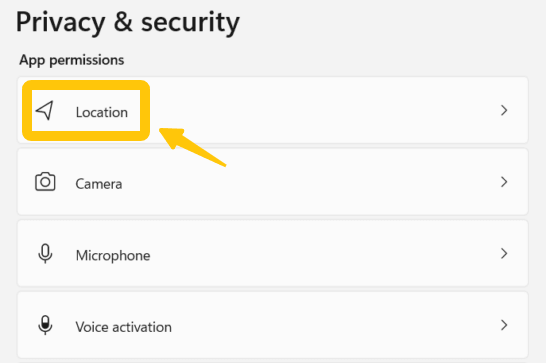
- Open Settings from the Start menu.
- Go to Privacy & security → Location.
- Find Location services and switch it On or Off.
If the option is unavailable, you may need to use an administrator account to change the system-wide location setting.
Manage Location Access for Individual Apps
You can also choose which apps are allowed to use your location:
- Go to Settings → Privacy & security → Location.
- Make sure Location services is turned on.
- Find Let apps access your location.
- Turn location access on or off for the apps listed there.
The available options can vary depending on your Windows version and the apps installed on your PC.
How to Turn on/off Location Services on iPhone?
On an iPhone, you can turn Location Services on or off for the entire device or control location access for individual apps.
Turn Location Services On or Off on iPhone
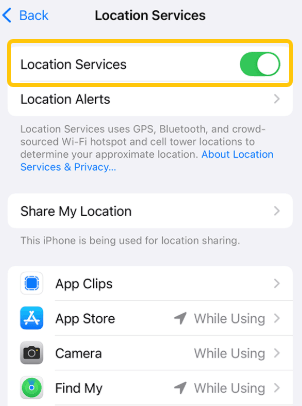
- Open the Settings app.
- Go to Privacy & Security → Location Services.
- Turn the Location Services switch On or Off.
Turning it off stops apps from using your iPhone’s built-in location information.
Manage Location Access for Individual Apps
You can also decide which apps can access your location:
- Go to Settings → Privacy & Security → Location Services.
- Select an app from the list.
- Choose an option such as Never, Ask Next Time Or When I Share, While Using the App, or Always, depending on the app.
- If available, you can also turn Precise Location on or off.
This lets you keep Location Services enabled while limiting location access for apps that don’t need your exact location.
Read more: Can Someone See Your Location If Your Phone Is Off?
How to Enable/Disable Location Services on Android?
On Android, you can turn Location Services on or off for the whole device and manage location permissions for individual apps.
Turn Location Services On or Off on Android
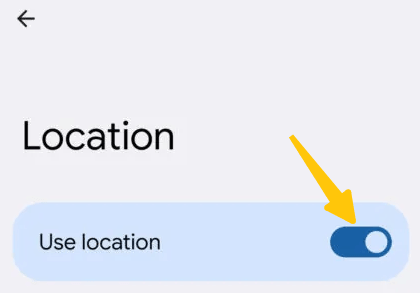
- Open the Settings app.
- Tap Location.
- Turn Use Location on or off.
When Location Services are enabled, apps with the required permission can use your device’s location.
Manage Location Access for Individual Apps
To control which apps can access your location:
- Open Settings → Location.
- Tap App location permissions or a similar option.
- Select an app.
- Choose the location access option you prefer, such as Allow all the time, Allow only while using the app, Ask every time, or Don’t allow.
The available options may differ between Android versions and devices.
How to Turn on/off Location Services on Linux?
Different Linux distributions and desktop environments handle location services differently. The following steps apply to Linux systems using the GNOME desktop environment, such as Ubuntu.
- Open the Settings app.
- Go to Privacy → Location Services.
- Enable or disable location services.
You can also manage location access permissions through privacy settings, depending on your Linux distribution and installed applications.
Note: If you don’t see the Location Services option, your desktop environment or distribution may not offer built-in location services.
Location Services vs. IP Location: What’s the Difference?
Location Services and IP location can both be used to determine where you are, but they rely on different information.
Location Services use signals such as GPS, Wi-Fi networks, and cellular networks to estimate your device’s location. They can provide a relatively precise location.
IP location estimates your location based on your public IP address. It usually identifies a general area, such as a city or region, rather than your exact position.
| Location Services | IP Location |
|---|---|
| Uses GPS, Wi-Fi, cellular networks, etc. | Uses your public IP address |
| Can be relatively precise | Usually provides an approximate location |
| Mainly controlled through device settings | Mainly determined by your internet connection |
| Commonly used by apps | Commonly used by websites and online services |
It’s also possible for the two methods to show different locations. For example, a VPN can change the public IP address used for IP-based location, while your device’s GPS location may remain unchanged.
If you want to change the IP address-based location information displayed on websites, LightXtreme VPN can help you by routing your network traffic to servers in other locations. It supports 2000+ servers, so you can choose the region you want to connect to.
FAQ about Location Service
1. Should I Keep Location Services On or Off?
If you use apps that require location services, such as navigation or weather apps, please keep location services enabled. If you don’t need location-based features or want to restrict location access, you can turn them off.
2. Why Is My Location Showing the Wrong Location?
Your location may be inaccurate due to weak GPS signals, outdated location data, inaccurate Wi-Fi or cellular network information, or IP address-based location methods.
VPNs may also cause your IP address to appear in other locations.
3. Can a VPN Change My Location?
A VPN can change the IP address a website sees, thus altering how your location is displayed based on your IP address. However, it typically does not change your device’s GPS location.