


Want to know who has your location on your iPhone or Android phone? You can quickly check your location-sharing settings to see who can access your location and which apps have location permissions.
This guide explains how to see who has your location on iPhone and Android, hide your location, and limit location access when needed.
How to See Who Has Your Location on iPhone?
If you want to know who has your location on iPhone, here are some easy ways.
Way 1: Check Who Can See Your Location in Find My
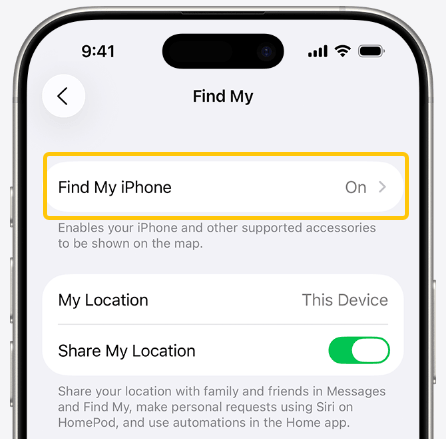
- Open the “Find My” app on your iPhone.
- Tap People at the bottom of the screen.
- Review the list of people shown there.
- Tap a person’s name to see the details of your location sharing with them.
The People tab is the main place to check your location sharing. If you use “Family Sharing”, family members may also appear in this section, although they still need to share their own location with you before you can see theirs.
Read more: Can Someone See Your Location If Your Phone Is Off?
Way 2: Check Location Sharing in Messages
Location sharing can also be started or managed through Messages. If you have shared your location with someone in a conversation, you can check the sharing status from that conversation.
- Open “Messages”.
- Open the conversation with the person.
- Tap their name or contact icon at the top.
- Check whether location sharing is active.
Way 3: Check Which Apps Can Access Your Location
Finding out who has your location is only part of the picture. Apps can also access your location based on the permissions you have given them.
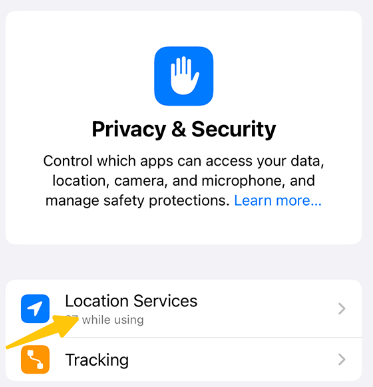
- Open “Settings”.
- Go to “Privacy & Security”.
- Tap “Location Services”.
- Review the apps listed there.
- Tap an app to check or change its location permission.
Depending on the app, you may see options such as “Never, Ask Next Time or When I Share”, While Using the App, or Always. You can also control “Precise Location” for supported apps.
How to Check Who Has Your Location on Android?
If you want to know who has your location on Android, please check the following ways:
Way 1: Check Who Can See Your Location in Google Maps
Google Maps is the main place to check location sharing on Android.
- Open “Google Maps”.
- Tap your profile picture or initial in the top-right corner.
- Tap “Location sharing”.
- Check the people listed there.
- Tap a person’s profile to see your current sharing status.
People listed under Location Sharing are the contacts you have chosen to share your real-time location with. Depending on the sharing setup, they may be able to see your recent location and your device’s battery status.
Way 2: Check Which Apps Can Access Your Location
Someone seeing your location through Google Maps is different from an app having permission to access your device’s location. To check your Android location permissions:
- Open “Settings”.
- Tap “Location”.
- Tap “App location permissions”.
- Review the apps under Allowed all the time, Allowed only while in use, Ask every time, or Not allowed.
- Tap an app to change its location permission.
You can also control whether an app can use your precise location or only an approximate location, depending on your Android version and device.
Way 3: Check Google Location Sharing Settings
If you want to review Google’s location-sharing settings directly, the path on supported Android devices is:
Settings → Location → Location services → Google Location Sharing
From there, you can see the people you’re sharing your location with and stop sharing with a specific person. You can also turn off “Use Location Sharing” to pause location updates.
How to Stop Someone From Seeing Your Location on iPhone?
If you find someone you no longer want to share your location with, you can stop sharing directly from Find My.
- Open “Find My”.
- Tap “People”.
- Select the person.
- Scroll down and tap “Stop Sharing My Location”.
You can also stop sharing your location with everyone by opening “Find My” → “Me” and turning off “Share My Location”.
When you stop sharing with one person, the change also applies across supported Apple location-sharing apps.
How to Stop Someone From Seeing Your Location on Android?
If you find someone you no longer want to share your location with, you can remove their access from Google Maps.
- Open “Google Maps”.
- Tap your profile picture or initial.
- Tap “Location sharing”.
- Select the person.
- Tap “Stop”.
This stops your real-time location from being shared with that person.
If you only want to temporarily stop location updates, Android also provides a Google Location Sharing setting.
How to Hide Your Location on iPhone and Android?
If you want to hide location information on your iPhone or Android phone, the following methods can help you conceal your device’s GPS location, app location permissions, and IP-based location data.
1. Disable or restrict location access
On an iPhone, go to Settings > Privacy & Security > Location Services. You can turn off Location Services entirely or adjust location access permissions for specific apps. For apps that support this feature, you can also disable “Precise Location,” limiting the app to accessing only your approximate location.
On an Android phone, go to Settings > Location > App location permissions. Review which apps have access to your location and modify their permission settings (e.g., “Allow all the time,” “Allow only while using the app,” or “Don’t allow”).
2. Use a VPN to change your IP address
A device’s physical location and its IP address are distinct. Turning off GPS or location services does not hide your IP address; websites and online services can still estimate your approximate location based on it.
If you wish to hide your IP address and alter your apparent online location, you can use a VPN. LightXtreme VPN allows you to connect to servers in over 70 countries and regions. Once connected, your public IP address is replaced by the VPN server’s IP address, thereby reducing the risk of exposing your location via your IP.
It supports Android, iPhone, Windows, and macOS, allowing you to use it on different devices.
FAQs
1. Can Someone See Your Location Without You Knowing on Android?
Generally, it is not possible to view your real-time location based solely on your mobile phone number. However, others may be able to see your location if you have enabled Google Location Sharing, shared your location via other apps, or granted location access to a specific app.
If you are unsure, please check the “Location Sharing” settings in Google Maps, as well as the “Location” > “App location permissions” options in your device’s Settings.
2. Does Turning Off Location Services Stop Everyone From Seeing Your Location?
Turning off “Location Services” prevents many apps from accessing your device’s GPS location data, but it does not necessarily stop all forms of location sharing, nor does it delete previously collected location data.
If you wish to prevent others from knowing your location, please individually check your currently active location-sharing settings.