


Ever been stuck trying to log into Steam because the CAPTCHA just won’t load or work properly? No matter how many times you refresh, the Steam CAPTCHA is still not working.
In this guide, we’ll explain what CAPTCHA is and how to fix the Steam CAPTCHA Not Working, from clearing your browser cache to tweaking your internet settings and more.
Why Is Steam CAPTCHA Not Working?
Ever tried to log into Steam, only to get hit with a CAPTCHA that just won’t go through? You type it in, click verify, and bam, you see messages like “Your response to CAPTCHA does not appear to be valid” or simply “Steam CAPTCHA not working.”
That’s frustrating. So, here are the most common culprits behind broken Steam CAPTCHA:
- Browser cache issues: A cluttered cache can mess with CAPTCHA scripts and cause failures.
- DNS cache errors: Just like your browser, your system’s DNS cache can get outdated and break the verification process.
- Glitches in Chromium-based browsers: Using browsers like Chrome or Edge? They’re great, but sometimes random bugs can prevent CAPTCHA from loading properly.
- Proxy or VPN interference: Steam doesn’t always play nice with proxies or VPNs. These tools can trigger CAPTCHA errors or block it from appearing at all.
- Unstable internet connection: If your network is weak or keeps dropping, CAPTCHA might not complete the verification handshake.
- Flagged IP address: If your IP is blacklisted or behaving suspiciously, Steam might block the CAPTCHA request entirely.
7 Ways to Fix Steam CAPTCHA Not Working
Now that you know what makes your Steam CAPTCHA impossible, let’s look at how to fix it!
Corrupted files or too much cache usually cause the Steam CAPTCHA not working. Clearing the cache and cookies will remove corrupted files that may interfere with the CAPTCHA.
Here are the steps to clear data and cookies in different browsers:
Google Chrome:
- Launch Google Chrome.
- Click the three dots button (⋮) in the upper-right corner.
- Go to Clear browsing data.
- Select the time range you want to clear.
- Check the boxes next to “Cookies and other site data” and “Cached images and files.”
- Click Clear Data to complete the process.
Read more: How to Clear Cache and Cookies on Chrome
Safari:
- Launch Safari.
- Go to Safari > Preferences > Privacy.
- Click Remove stored cookies and data.
Microsoft Edge:
- Launch Microsoft Edge.
- Click the three dots button (•••).
- Go to Settings > Privacy, search, and services > Choose what to clear.
- Select “Cookies and other site data.”
- Click Clear now.
Way 2: Clear DNS cache
Clearing the DNS cache can resolve this problem and get Steam CAPTCHA working properly again.
For Windows:
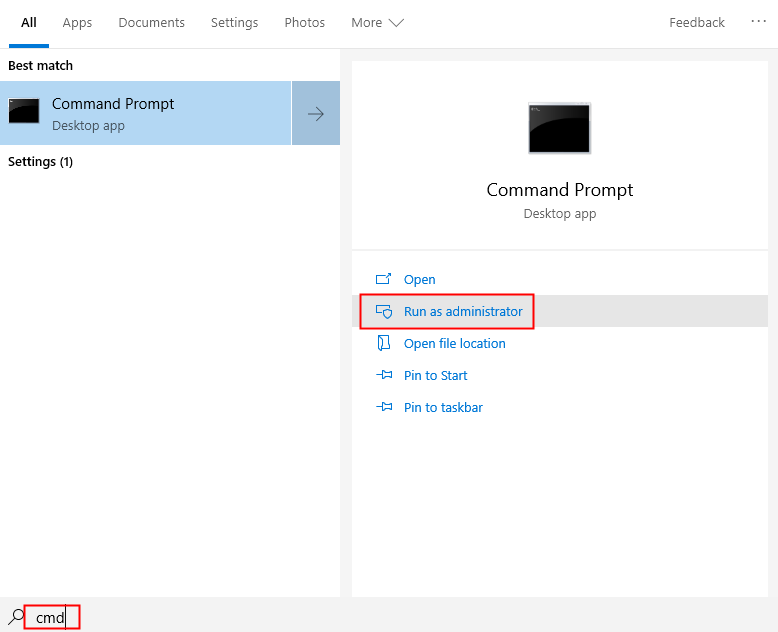
- Open Command Prompt as Administrator:
- Click on the search bar in the Taskbar and type cmd.
- Right-click on Command Prompt in the search results and select Run as administrator.
- Flush DNS Cache: In the Command Prompt window, type the following commands one by one, pressing Enter after each:ipconfig /flushdns netsh winsock reset
- Restart Your Computer: After executing the commands, restart your computer and check if the Steam CAPTCHA is working.
For Mac:
- Open Terminal:
- Go to Applications > Utilities > Terminal.
- Flush DNS Cache: In the Terminal window, type the following command and press Return: sudo dscacheutil -flushcache; sudo killall -HUP mDNSResponder
- Restart Your Computer: After running the command, restart your Mac and see if the Steam CAPTCHA issue is resolved.
By following these steps, you should be able to clear any corrupted DNS cache that might be causing the “Steam CAPTCHA not working” error.
Way 3: Change the browser
If clearing your browser and DNS cache doesn’t fix the Steam CAPTCHA not working issue, the problem may be with the browser itself. Try switching to a different browser, such as:
- Microsoft Edge
- Brave
- Mozilla Firefox
- DuckDuckGo
- Opera
Open the Steam website on a new browser and try to create your account or log in. See if that fixes the Steam CAPTCHA not working issue.
Way 4: Disable or change the VPN and proxy server
Sometimes, VPNs or proxy servers can mess with the connection between your browser and Steam’s CAPTCHA system. If that’s the case, disabling them could instantly solve the issue.
How to Handle VPN Conflicts?
Try turning off your VPN and see if the CAPTCHA loads correctly. If you rely on a VPN regularly, consider switching to a more reliable one like LightXtreme VPN.
LightXtreme VPN uses advanced encryption protocols to ensure data transmission security. With over 2,000 servers across more than 70 countries, it offers fast and stable connections, freeing you from the frustration of repetitive CAPTCHA issues.
Download it now to enjoy free nodes and unlimited bandwidth.
How to Turn Off Proxy on Windows?
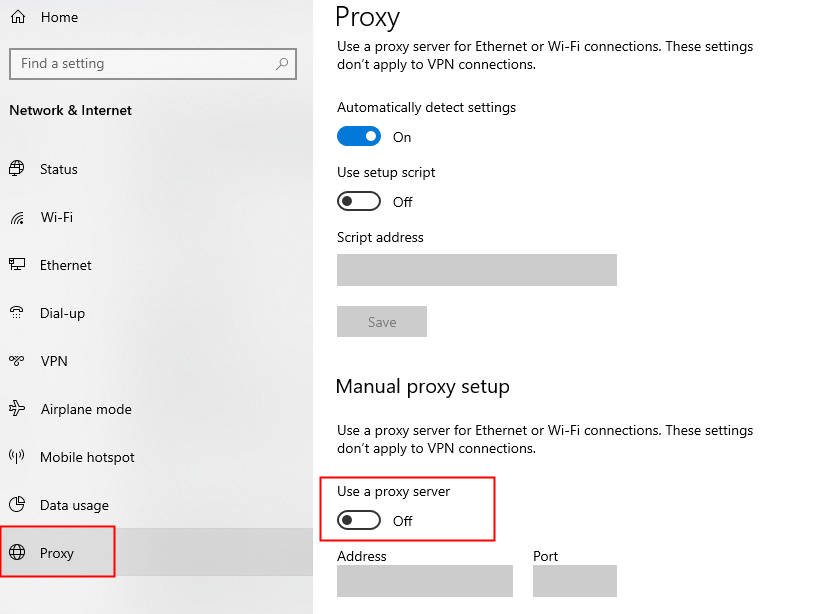
- Open the Settings menu.
- Navigate to Network & Internet.
- Click Proxy.
- In the Manual Proxy Setup section, click “Use a proxy server.“
- Toggle Use a proxy server to Off and click Save.
How to Turn Off Proxy on macOS?
- Open System Settings.
- Select your network type (e.g., Wi-Fi or Ethernet).
- Click Details.
- Select the Proxy tab, uncheck all options, and click OK.
Once you’ve disabled your VPN or proxy, reload Steam and try logging in again. In many cases, that’s all it takes to fix the “Steam CAPTCHA not working” issue.
Way 5: Check your internet connection
An unstable network connection or intermittent signal is one of the most common reasons why the Steam CAPTCHA fails to load properly.
If the methods mentioned above do not resolve the issue, please verify whether there is a problem with your network connection.
- Open your web browser and visit several websites. If all the pages load normally, then your network connection is functioning correctly.
- Visit fast.com to get detailed information about your internet speed.
However, if the pages fail to load or load extremely slowly, please try switching to a different network environment or simply restarting your router.
Maintaining a network environment with a strong signal and a stable connection is the key to ensuring that the Steam CAPTCHA loads successfully.
Way 6: Switch the Internet Protocol version to IPv4
IPv6 is replacing IPv4, but not all servers fully support it. This may interfere with CAPTCHA verification. Switching to IPv4 will resolve the issue.
For Windows:
- Open Network Connections:
- Press “Win + R” to open the Run dialog box.
- Type control panel and press Enter.
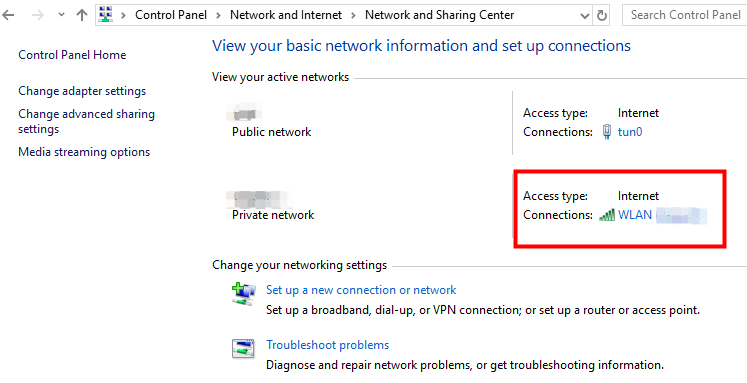
- Go to “Network and Internet” > “Network and Sharing Center”.
- Click on the name of your connection next to “Connections.”
- Disable IPv6:
- In the Wi-Fi Status window, click Properties.
- In the Properties window, uncheck the box for Internet Protocol Version 6 (TCP/IPv6).
- Ensure Internet Protocol Version 4 (TCP/IPv4) is checked.
- Click “OK” to save the changes.
For Mac:
- Open Terminal: Go to Applications > Utilities > Terminal.
- Disable IPv6:
- Type the following command and press Enter:sudo networksetup -setv6off Wi-Fi
- Type your admin password and press Enter.
Read more: Is IPv6 Faster Than IPv4? Speed & Performance Compared
Way 7: Change to another device
If none of the above fixes the Steam CAPTCHA impossible issue, try logging into your Steam account on another device, such as a phone, tablet, or computer.
Takeaways: Fixing Steam CAPTCHA not Working
- Clear browser cache: Remove corrupted files that cause CAPTCHA failures.
- Clear DNS cache: Fix potential issues affecting CAPTCHA functionality.
- Switch browsers: Try using a different browser to see if that fixes the problem.
- Disable VPNs/proxies: These can interfere with CAPTCHA verification.
- Check your internet connection: Ensure you have a stable, reliable connection.
- Switch to IPv4: Some servers may not fully support IPv6.
- Use a different device: Switching to a phone or tablet can fix the problem.
What Is a Steam CAPTCHA?
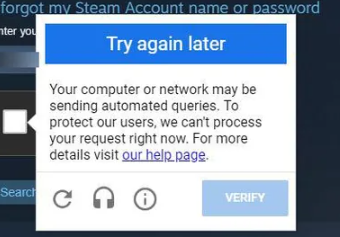
If you’ve ever tried logging into Steam and got stuck clicking traffic lights, buses, or blurry images, you’ve already seen a CAPTCHA in action.
A CAPTCHA is a security check designed to tell whether you’re a real person or an automated bot. Steam uses it to prevent spam accounts, fake signups, and suspicious login attempts.
When the Steam CAPTCHA stops working properly, you may see endless verification loops, loading errors, or repeated “Your response to the CAPTCHA appears to be invalid” messages.
Wrapping Up
Okay, we covered a lot here. You learned what CAPTCHA is and how to fix the “Steam CAPTCHA not working” issue.
With a few quick tweaks, you’ll be back in your Steam account in no time, no more CAPTCHA headaches. Got your login working again? Great! If not, try a different fix from the list above.