


Need to take a break from WhatsApp or sign out from a device? This guide explains how to log out of WhatsApp on Android, iPhone, WhatsApp Web, and Desktop. You can learn how to sign out without deleting your account, what happens after logging out, and how to fix common logout issues.
Whether you want to log out of WhatsApp from your phone, remove access from a linked device, or use WhatsApp more privately, the steps below will help you complete the process quickly.
How to Log Out of WhatsApp on Android?
If you want to temporarily stop using WhatsApp on your Android phone, you can now log out without deleting your account or removing the app. Follow these steps to log out of WhatsApp on Android:
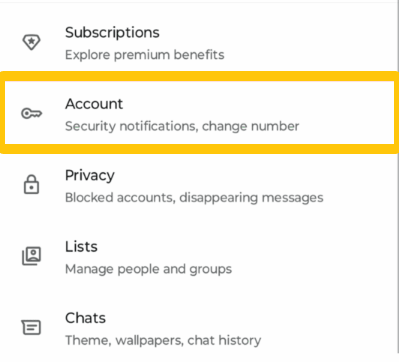
- Open WhatsApp on your Android phone.
- Tap the three-dot menu (⋮) in the top-right corner.
- Select Settings.
- Tap Account.
- Choose Log Out and confirm your action.
After logging out, WhatsApp will stop sending notifications until you sign in again. Your account details, chats, and groups will remain available, so you can quickly log back in whenever you need to use WhatsApp again.
How to Log Out of WhatsApp on Samsung
If you are wondering how to log out of WhatsApp on Samsung, the process is the same as other Android devices. Samsung phones use the Android version of WhatsApp, so you can follow the steps above:
WhatsApp → Settings → Account → Log Out
If you cannot find the logout option, make sure that your WhatsApp app is updated to the latest version from the Google Play Store.
How to Log Out of WhatsApp on iPhone
For iPhone users, WhatsApp also provides a logout option that allows you to sign out without deleting your account. To log out of WhatsApp on iPhone, follow these steps:
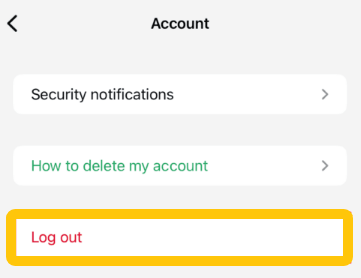
- Open WhatsApp on your iPhone.
- Tap Settings in the bottom-right corner.
- Select Account.
- Tap Log Out.
- Confirm that you want to log out.
Once you complete these steps, WhatsApp will keep your account information on the device, allowing you to sign in again easily.
How to Log Out of WhatsApp Web
WhatsApp Web allows you to use WhatsApp on your computer through a browser. If you have logged in on a shared computer or no longer want that device to access your account, you can easily log out.
- Open WhatsApp Web in your browser.
- Click the Menu icon (⋮) next to your profile picture.
- Select Log Out.
- Confirm the logout.
Your WhatsApp Web session will end immediately, and that browser will no longer have access to your messages.
Log Out of WhatsApp Web from Your Phone
You can also log out of WhatsApp from your phone if you no longer have access to the computer where you signed in. Follow these steps:
- Open WhatsApp on your phone.
- Go to Settings.
- Tap Linked Devices.
- Select the computer or browser you want to remove.
- Tap Log Out.
This method is especially useful if you forgot to sign out on a public computer or another device.
How to Log Out Without Deleting Your Account
Many users worry that logging out of WhatsApp will delete their messages, contacts, or account information. However, logging out of WhatsApp does not delete your account. It only signs you out of the app temporarily, and you can sign back in whenever you want.
If you want to log out of WhatsApp without deleting your account, use the built-in logout option instead of removing the app or deleting your account.
After logging out:
- Your WhatsApp account will remain active.
- Your WhatsApp groups, chats, and settings will stay on your device.
- Your contacts can still find your profile and send you messages.
- You can log back in with the same phone number later.
For Android and iPhone users, the recommended method is:
- Open WhatsApp.
- Go to Settings.
- Tap Account.
- Select Log Out.
- Confirm the action.
What Happens After You Log Out?
After you log out of WhatsApp, your account remains connected to your phone number, but the app will temporarily stop working until you sign in again.
Here is what happens after you log out:
| Feature | What Happens |
|---|---|
| Chats and groups | Remain available when you log back in |
| Account information | Saved on your device |
| Notifications | Stop until you sign in again |
| Incoming messages | Delivered after you log back in |
| Contacts | Can still see your profile and send messages |
| Linked devices | May remain connected for a limited period |
Logging out is useful when you want to take a break from WhatsApp, share your device with someone else, or temporarily stop receiving notifications.
Why You Can’t Log Out of WhatsApp?
If you cannot find the logout option in WhatsApp, there are several possible reasons. The most common one is that your app version does not support the logout feature yet. Here are some solutions you can try:
1. Update WhatsApp
An outdated version of WhatsApp may not include the latest account management features. Open the Google Play Store or App Store, search for WhatsApp, and install the latest update.
Read more: How to Update WhatsApp on Android and iPhone?
2. Check the Correct Settings Menu
The logout option is not located on the main chat screen. Follow this path: WhatsApp → Settings → Account → Log Out
If you only check the chat page or profile settings, you may not see it.
3. Restart WhatsApp
Sometimes the app does not display new features correctly. Close WhatsApp completely, reopen it, and check the settings again.
4. Use Linked Devices for Web Sessions
If you are trying to log out from WhatsApp Web or another computer, you do not need to log out from the main app. Instead, open:
WhatsApp → Settings → Linked Devices → Select Device → Log Out
5. Avoid Deleting Your Account
Some older guides recommend deleting WhatsApp data or uninstalling the app to force a logout. However, this may remove local app data and create unnecessary risks if your chats are not backed up.
Updating WhatsApp and using the official logout option is the safest way to sign out while keeping your account.
Logging out of WhatsApp helps you manage your account access, but protecting your internet connection is also important when using public Wi-Fi or unfamiliar networks. A VPN like LightXtreme VPN encrypts your traffic and helps keep your online activities more private while you chat, browse, or access your favorite services.
FAQ about Log Out of WhatsApp
1. Can I log out of WhatsApp without deleting my account?
Yes. You can log out of WhatsApp without deleting your account. Logging out only signs you out temporarily, while your account information, chats, and groups remain available. You can log back in later using the same phone number.
2. Does logging out of WhatsApp delete chats?
No. Logging out of WhatsApp does not delete your chats. Your messages, groups, and settings will remain saved. However, you may need to wait until you log back in to receive messages sent during the logout period.