


VPNs (Virtual Private Networks) are essential tools for protecting online privacy & security and accessing restricted content.
LightXtreme VPN, like any other VPN service, can occasionally experience connection issues, which may cause frustration.
If you’re facing problems with LightXtreme VPN not working or connecting, take the 10 troubleshooting steps below to fix LightXtreme VPN connection issues and get back online.
Check Your Internet Connection
The first step to troubleshooting any VPN issue is to check if your internet connection is working properly. VPNs require a stable internet connection to function. If your internet connection is slow or disconnected, LightXtreme VPN may not be working/connecting.
What to do:
- Restart your device. Try to disconnect and reconnect to your network.
- Try to load a webpage in your browser to check if your local internet is working.
- If your connection is unstable or slow, try rebooting your router/modem or switching to another network, e.g., try switching to a mobile data connection.
Reconnect/Restart LightXtreme VPN
VPN apps, like any software, can sometimes encounter bugs or performance issues that cause them not to work as expected. Simply restarting the LightXtreme VPN app may help fix temporary glitches or technical issues.
What to do:
- On the LightXtreme VPN main interface, click “Stop” to disconnect the VPN connection and click “Start” to reconnect. Repeat the operation several times.
- On mobile devices, close the LightXtreme VPN app entirely by swiping it away from the task manager. On computers, find and right-click LightXtreme VPN in the system tray and select “Exit”.
- Wait for a few seconds, then launch the LightXtreme VPN app to try to connect again.
Check LightXtreme VPN Server Status
One of the most common reasons for VPN not working issues is server downtime or maintenance. If the LightXtreme VPN server you’re trying to connect to is temporarily down or under maintenance, you cannot establish a connection.
What to do:
- Check the LightXtreme VPN app, visit the official LightXtreme VPN website, or check its social media channels to see if there are any notifications regarding server outages or maintenance.
- Most VPN apps, including LightXtreme VPN, allow you to select from vast server locations around the world. If one server can’t connect, try to connect to a different server within the LightXtreme VPN app.
Update the LightXtreme VPN Software
VPN providers frequently release updates to fix bugs, add new features, and enhance security. An outdated version of the LightXtreme VPN app might be incompatible with the latest operating systems or may have bugs.
Update the LightXtreme VPN app to the latest version to see if it can help fix the LightXtreme VPN not working issue.
What to do:
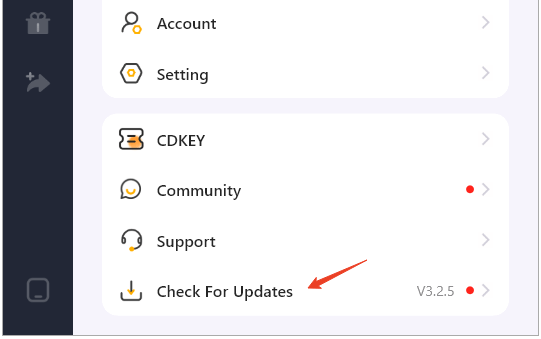
- Generally, when you launch LightXtreme VPN, it will pop up any available newer updates. You can click the update and update the app directly.
- Alternatively, you can click “Mine” in the left sidebar and select “Check for Updates”.
- You can also go to the App Store (iOS) or Google Play Store (Android) to check for available updates for the LightXtreme VPN.
- For desktop users, you can also visit LightXtreme VPN’s official website to download the latest version of the VPN application.
Switch to a Different VPN Server Location
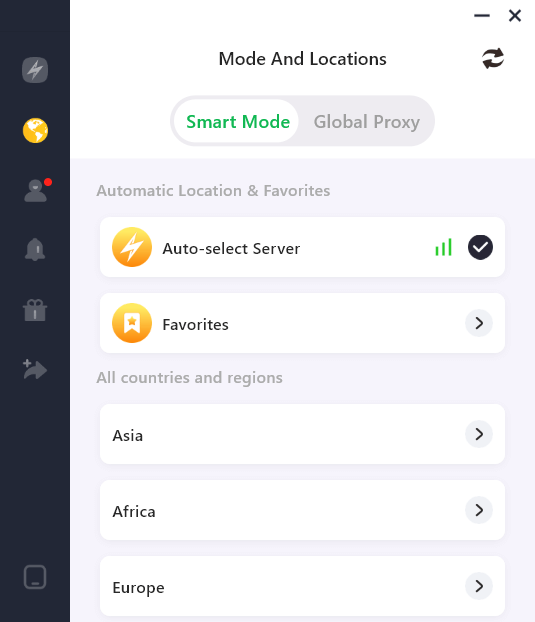
If you are connected to a server that’s overloaded or experiencing high traffic, you may experience the “VPN keeps disconnecting” issue. LightXtreme VPN offers 2000+ servers in 50+ countries. Sometimes, switching servers can resolve the LightXtreme VPN not working/connecting problem.
What to do:
- Open the LightXtreme VPN app and click the “Mode and Locations” icon in the left sidebar.
- Choose a different server location to connect. If you’re experiencing issues with a specific country’s server, try switching to a different country or region.
Reinstall the LightXtreme VPN App
You may also consider uninstalling and reinstalling the LightXtreme VPN app. Corrupted files or improper installation may prevent LightXtreme VPN from working or connecting correctly.
What to do:
- Uninstall the LightXtreme VPN app from your device.
- Restart your device to make sure all settings are refreshed.
- Download and install the latest version of the LightXtreme VPN app from its official website or app store. This will ensure a fresh installation of the app.
Temporarily Disable Firewall or Antivirus Software
Sometimes, third-party security programs or antivirus software may block certain types of VPN traffic and interfere with the LightXtreme VPN connection.
What to do:
- Temporarily disable your firewall or antivirus software and try to reconnect LightXtreme VPN.
- Make sure to turn on your firewall or antivirus software again after you successfully troubleshoot and fix your issue.
Clear LightXtreme VPN App Cache and Data
Along with the usage of the LightXtreme VPN app, your mobile device may accumulate cache or data. Corrupted caches or app data may cause issues with app performance. If LightningX VPN is not connecting, clearing the app’s cache and data may sometimes help fix the problem.
What to do:
- On Android, go to Settings > Apps > LightXtreme VPN > Storage > Clear Cache and Clear Data.
- On iPhone/iPad, you may need to uninstall and reinstall the LightXtreme VPN app to clear its cache and data.
- After clearing the cache or reinstalling the app, log into your LightXtreme VPN account and try connecting again.
Check for DNS or IP Conflicts
DNS (Domain Name System) issues or IP address conflicts may cause problems with VPN connections. LightXtreme VPN might fail to connect if your device is having trouble resolving domain names or has an IP address conflict.
What to do:
- Try to change your DNS settings and use a more reliable DNS service like Google’s DNS servers (8.8.8.8 and 8.8.4.4) or Cloudflare’s DNS (1.1.1.1).
- You can change your DNS settings through your device’s network configuration menu, which is typically found in the network settings.
Related: How to Flush DNS Cache on Windows 10/11, Mac, Android, iPhone
Contact LightXtreme VPN Support
If you’ve tried all of the above tips and are still experiencing the LightXtreme VPN not working/connecting issue, you may contact the LightXtreme VPN support team. They may provide advanced troubleshooting tips to help you fix the problem.
What to do:
- Reach out to LightXtreme VPN customer support via live chat on its official website or click Mine > Support in the app. Alternatively, send an email to [email protected].
- Provide the details of your problem, including your operating system, device type, any error messages, etc.
- The support team will guide you through advanced troubleshooting steps or provide a tailored solution to your issue.
Conclusion
VPN connection issues can be frustrating, but with these 10 tips, you can quickly troubleshoot and resolve most problems with LightXtreme VPN. Enjoy the privacy and security benefits of using LightXtreme VPN and use it to unblock global information now.